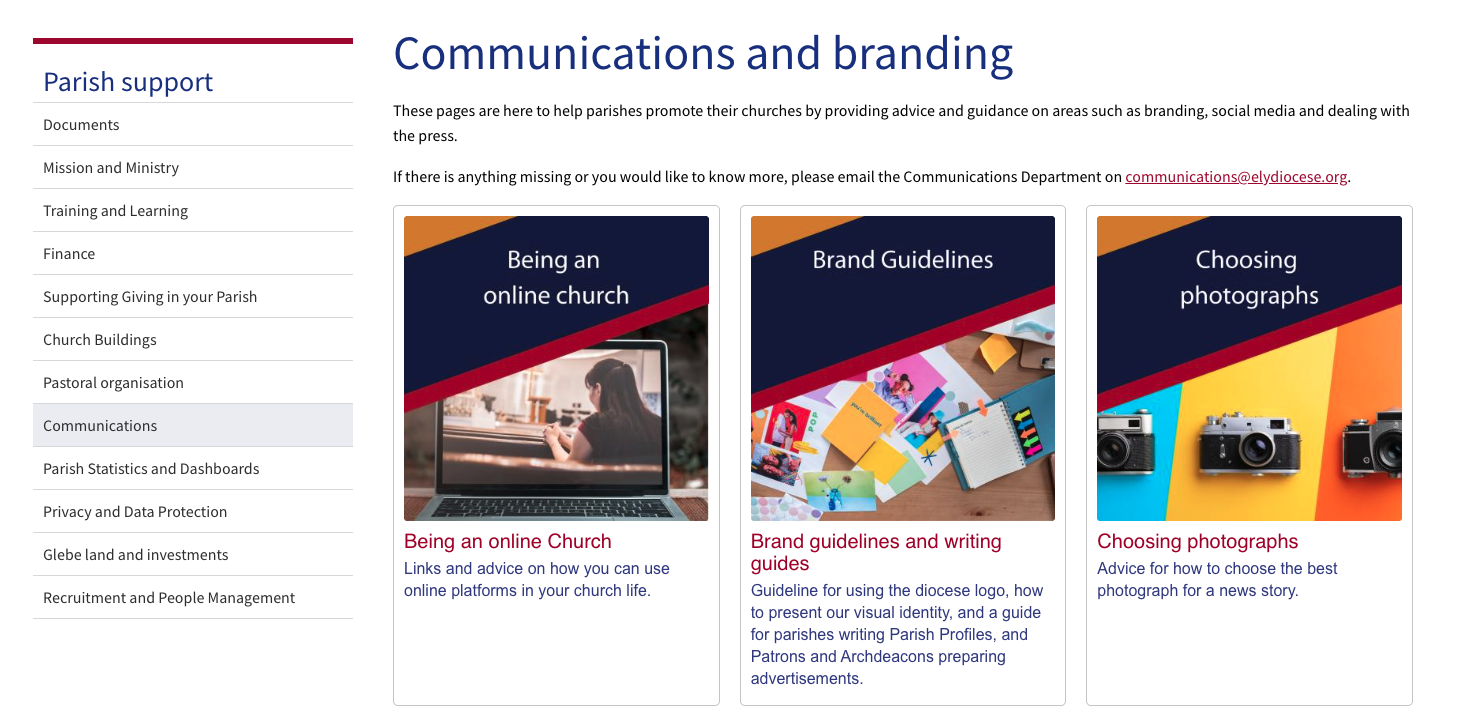
Cards within Church Edit are a way to display links to pages using imagery. Each page you add to Church Edit can have its own thumbnail image that is then shown in search results or when a folder you created has a number of pages listed underneath. You can see an example of Cards in the following screen shot from the Diocese of Ely.
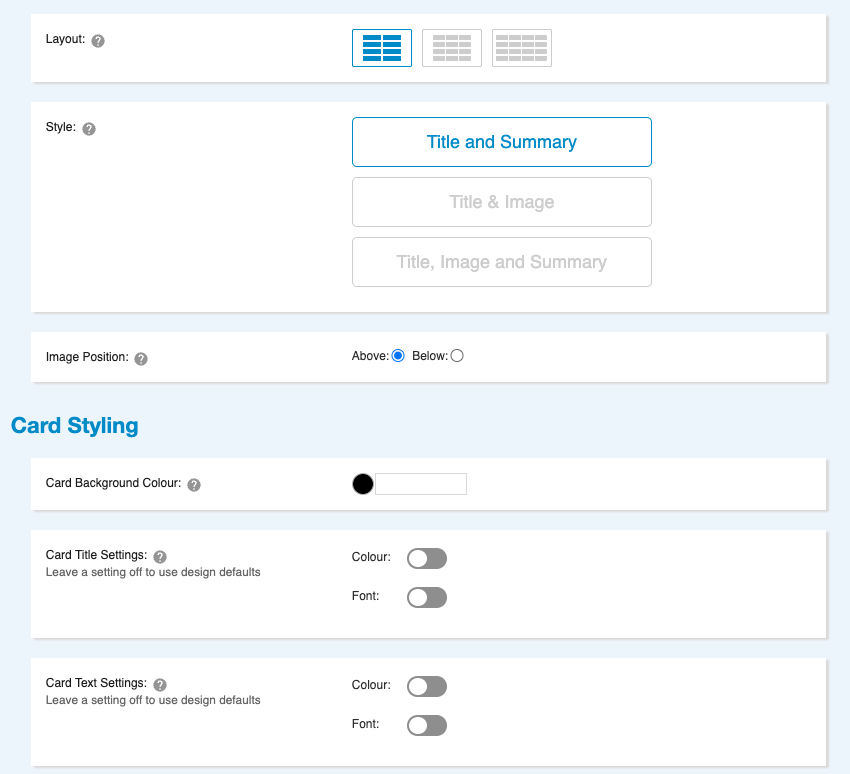
Cards display automatically based on the settings you have set for them and can be set up in the following way:
- Show articles within folder
This will list any folders that exist within the Folder - Articles within another Folder
Select a different folder and the pages from that folder will be shown as Cards - Articles with certain Tags
Tags are a really useful way to pull content from different articles. If you create a folder for Testimonials and wanted to pull in articles that were tagged Testimonies then this is a great use of both Tags and Cards. If each of the testimony pages had a unique image with a photo of the person giving their testimony then that brings more to the design. - Selecting specific articles
Whereas all the other options will dynamically bring across matching pages and display as cards, this option gives the most flexibility by allowing you to select which cards should appear below. - Sub Folders
This is ideal if you have a number of sub-folders and want to create a landing page that has cards automaticall for each of the sub-folders. It simplifies navigation and saves having to create a landing page and keep it up to date.
To Start Using Cards
Cards are not on by default so if you have not enabled them yet then go to Settings > Site Options and turn on Cards.

Ensure you have a default thumbnail for your pages - this will be used by any page that does not have its own thumbnail. Go to Design Builder > Design Options > Thumbnails and uploading a default image.
Go to the page that you want to create Cards for and at the bottom will be an ‘Add Cards’ green button and choose the options that you want for this.